
![[Translate to English:] WordPress Update aus Hamburg](/fileadmin/_processed_/3/4/csm_Hamburg-Kraene-historisch-Gemeni_be2043dae0.webp)
Why should you update WordPress?
The most popular web content management system by far unfortunately also attracts many unloved bots that attack the site and then like to nest so deeply in the system that manual removal is usually impossible. So you should always update WordPress. The official WordPress website also provides regular information on security updates for the WordPress system itself and some plugins.
Unfortunately, many people look at the backend far too rarely and don't even realize that there are important updates. I have also had two customers in recent years whose WordPress sites were successfully attacked. In some cases, they did not respond to my urgent recommendation to update WordPress in good time. Everyone should be aware that such an attack is never personal. In most cases, it is only about creating web space for spam or phishing sites. Many processes can be automated here.
In addition, more and more providers are switching off old PHP versions. Anyone who has ignored the messages about this shutdown from their provider will suddenly no longer have a functioning site. You can find information about the individual WordPress versions and their PHP compatibility on the official WordPress website. The same naturally also applies to the plugins and the theme used (and possibly also the child theme used).
Always make a backup first
Before updating WordPress, you should always make a backup of the WordPress system!
The bigger the version change, the more important the backup. Or: The further forward a number changes in the version, the more important the backup. I always have a development version for some customers. I can then “quickly” test an update without affecting the live site.
An example: The current WordPress version in the screenshot above is 6.7.1. If the system is to be updated to 6.7.2, this can usually be done safely “on the open heart” = in the live system. To be on the safe side, you can of course make a backup at any time before the update. But I usually don't do such an update in a copy of the live site. If the version jump is from 6.7.1 to 6.8.X, I always make a backup. I never update from 6.X to 7.X in the live system.
The WordPress ACTUAL state & automatic updating
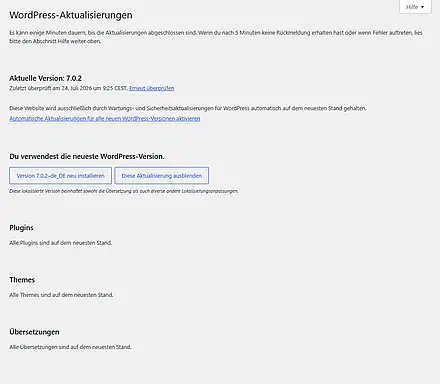
You can see an overview of the update status of your website via the menu item “Dashboard/Updates”. At best, it will look like this:
Before updating WordPress, you should always make a backup of the WordPress system!
The bigger the version change, the more important the backup. Or: The further forward a number changes in the version, the more important the backup. I always have a development version for some customers. I can then “quickly” test an update without affecting the live site.
An example: The current WordPress version in the screenshot above is 6.7.1. If the system is to be updated to 6.7.2, this can usually be done safely “on the open heart” = in the live system. To be on the safe side, you can of course make a backup at any time before the update. But I usually don't do such an update in a copy of the live site. If the version jump is from 6.7.1 to 6.8.X, I always make a backup. I never update from 6.X to 7.X in the live system.
If there are updates, you can see this in the WordPress backend at the top next to the page title:

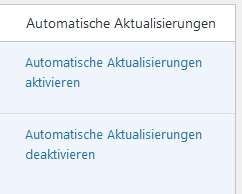
An overview of the In the plugin list, you can set each plugin to be updated automatically. At least for the plugins that do not affect the frontend, I set this to “update automatically” by default. If a plugin has been updated, an email is sent to the administrator email address with the subject “Some plugins have been updated automatically”. So far, I have always received this message with the note “No further action is required on your part”.
A check always takes place when a visitor accesses the page. If a website does not have too many visitors, a cronjob (= small program on the server that is automatically executed at intervals to be specified) can also be set up. This also makes the site a little faster. You can view your website via the menu item “Dashboard/Updates”. At best, it will look like this:

Update plugins and themes manually
If a WordPress update is available, it makes sense to update the plugins and themes first so that they are compatible with the new WordPress version. It may well happen that you can update one or two plugins again after the WordPress update. Some plugin updates are explicitly intended for a newer WordPress version.

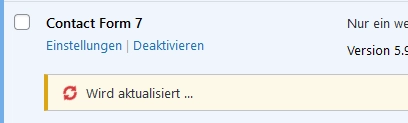
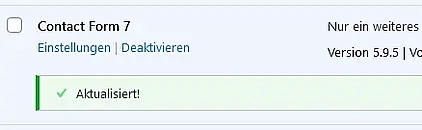
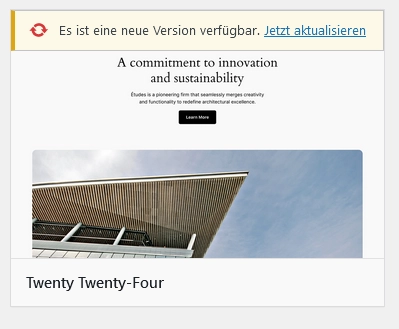
It works in a similar way with the themes. Here, the update availability is just in a different place. The automatic update can be found here in the theme details.
But be careful! If you update the theme you are currently using, some things may change in the frontend. The whole page may even have slipped or something similar. So if you use the automatic function here, you should definitely take a look at your site after the update.
Automatically Update WordPress
WordPress also offers automatic updates for the core. You can see if an update is available at the very top of the overview. There, you’ll also find information about the automation settings. If you haven’t changed any settings, it should say, “This site is automatically kept up to date with all new WordPress versions.” There are two variables for this in the central WordPress configuration file:
AUTOMATIC_UPDATER_DISABLED and WP_AUTO_UPDATE_CORE.
As is customary in WordPress, these are entered into the wp-config.php file in this format:
define( '<Variable>', VALUE );
AUTOMATIC_UPDATER_DISABLED can have two values: true and false
If you set it to true, no updates will be performed, and the backend will display the message “This site does not receive automatic updates for new WordPress versions.” Additionally, automatic updates cannot be enabled for plugins and themes either. If it is set to “false” (default), updates are performed automatically; the backend will then display the message, “This website is automatically kept up to date with all new WordPress versions.” Automatic updates can be enabled individually for all plugins and themes.
WP_AUTO_UPDATE_CORE can have three values: true, false, and ‘minor’. true means that all core updates are automated; if set to false, no updates are performed. If set to ‘minor’, only […] maintenance and security updates are performed. An update from version 7 to 8 would therefore have to be done manually.
Update WordPress Manually
The WordPress core system is located in the wp-admin and wp-includes directories, as well as in the PHP files (except for wp-config.php) in the root directory. Therefore, a WordPress system can also be updated manually by replacing these files. This can also help with an infected or hacked WordPress installation. So, to clean up or update a system, all you need to do is replace the directories and files listed above with those from the target system—for example, via FTP.
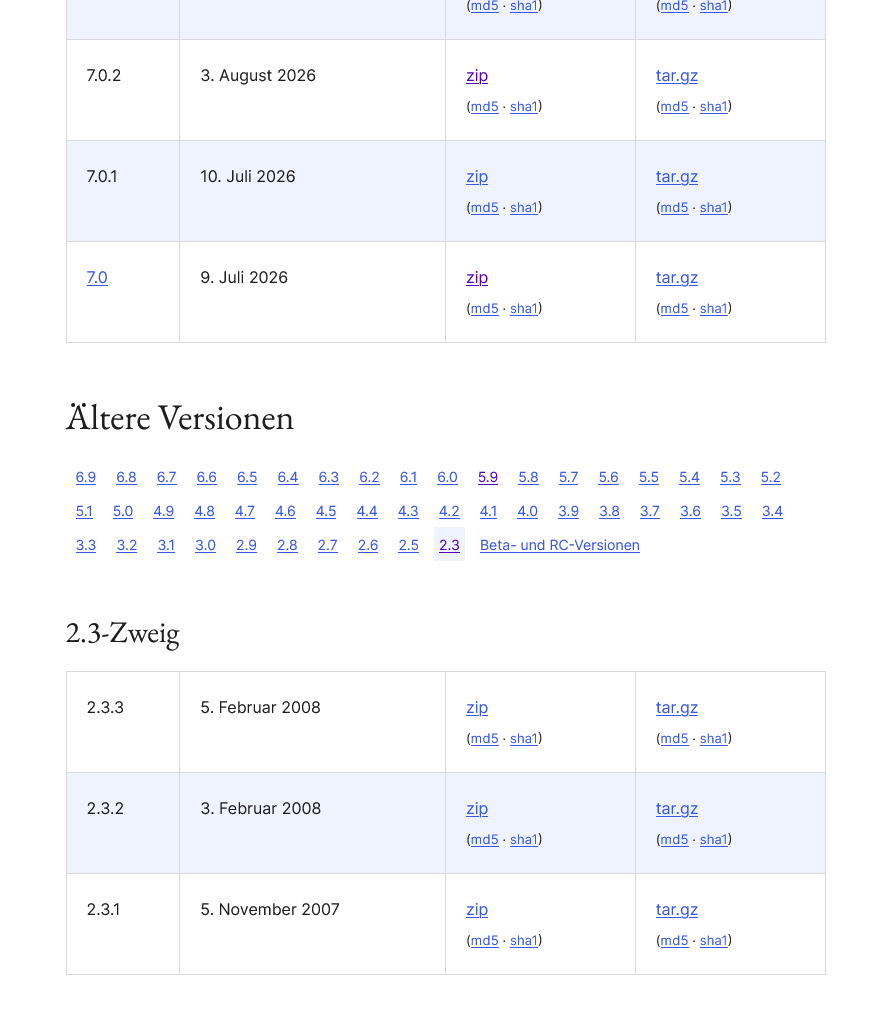
All WordPress versions are available for download on the WordPress.org website. For example, versions starting with 2 (from 2008) are also available there.
Conclusion: With regular WordPress security updates, you can keep your system up to date and protected against attacks as far as possible.
Here’s another tip: The WordFence plugin not only protects your WordPress site from attacks, but it also automatically notifies you when important updates are available for your system.